
In this article
- What a network switch actually does
- Managed vs unmanaged switch: the core difference
- Types of network switches
- Layer 2 vs Layer 3 switch
- Power over Ethernet: budgets in watts
- Stacking, uplinks and redundancy
- Choosing a network switch for small office setups
- Cabling is half the switch
- When to upgrade network switch hardware
- Brand and management choices
- FAQ
- Conclusion
The network switch is the least glamorous device in your office and one of the most important. Every PC, phone, printer, camera and access point plugs into one. Yet many Egyptian businesses still run on whatever switch came with the fit-out, often a stack of unmanaged boxes in a hot cupboard. This article explains the managed vs unmanaged switch decision in plain terms, then walks through Layer 2 vs Layer 3, Power over Ethernet (PoE) for CCTV and Wi-Fi, stacking, uplinks and the signs that your switches are due for replacement.
There are no prices here. Instead, you will get the features, numbers (ports, watts, speeds) and questions that let you compare quotes properly.
What a network switch actually does
A switch connects devices on the same local network and forwards traffic between them. Unlike an old hub, which shouted every packet to every port, a switch learns which device sits on which port (by MAC address) and sends traffic only where it needs to go. That makes the network faster and more predictable.
Your router or firewall connects the office to the internet. The switch connects everything inside the office. In a small office there may be one switch; in a multi-floor head office there may be dozens, arranged in layers.
Managed vs unmanaged switch: the core difference
An unmanaged switch is plug-and-play. It has no configuration interface. Every port is on the same network, there is no way to see what is happening on it, and there is nothing to secure. You plug it in and it works.
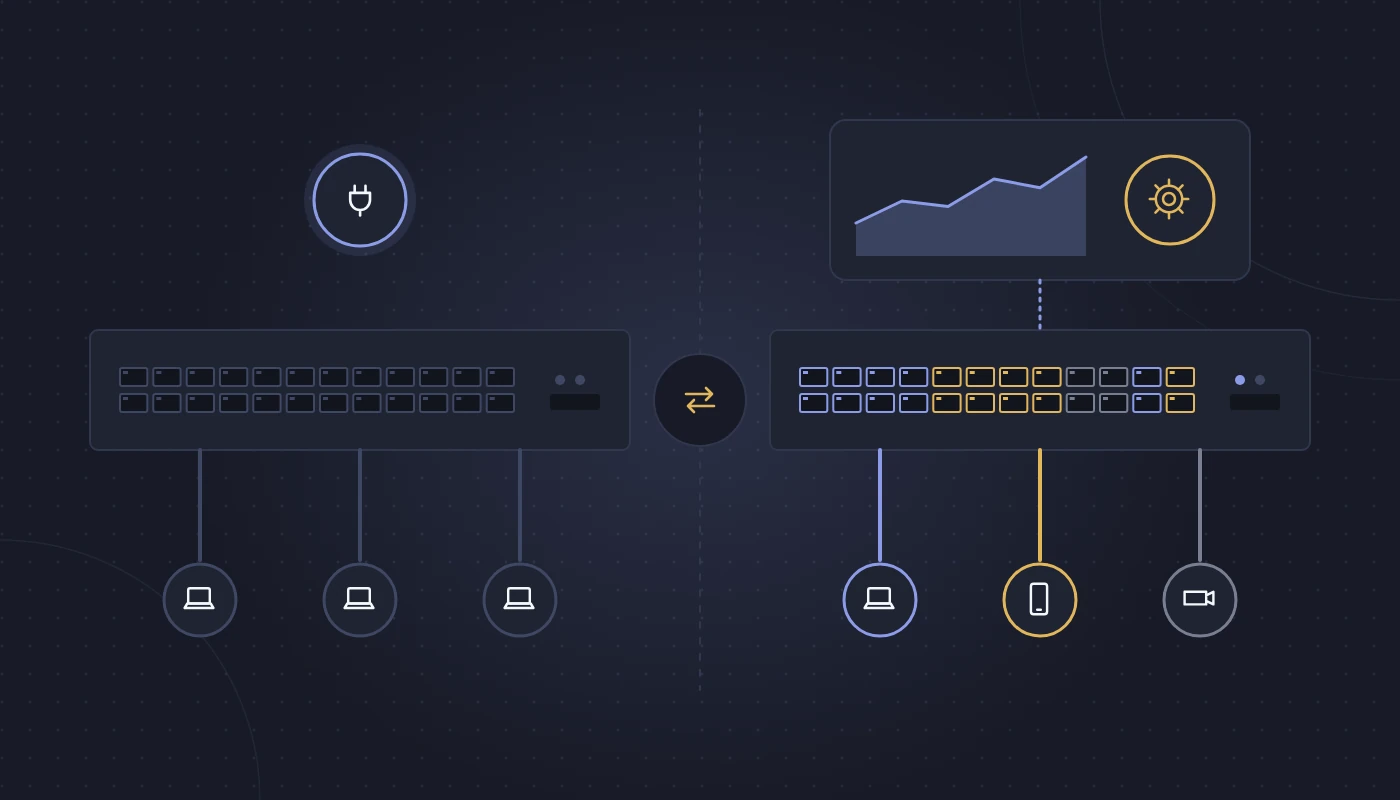
A managed switch can be configured and monitored. You log in (via web interface, command line or a cloud dashboard) and control how each port behaves: which network it belongs to, how much priority its traffic gets, whether it supplies power, who is allowed to connect, and what statistics it reports.
Between the two sits a middle category, often called smart or web-managed switches, which offer a subset of managed features through a simple web page.
| Feature | Unmanaged | Smart / web-managed | Fully managed |
|---|---|---|---|
| Configuration | None | Basic web interface | Web, CLI, cloud or central management |
| VLANs (network segmentation) | No | Yes, basic | Yes, full |
| Quality of Service (QoS) | Fixed or none | Basic | Granular, per port/application |
| Link aggregation (LACP) | No | Usually | Yes |
| Spanning Tree (loop protection) | Sometimes basic | Yes | Yes, with advanced options |
| Port security / 802.1X | No | Limited | Yes |
| Monitoring (SNMP, logs, port stats) | No | Limited | Full |
| PoE control per port | Not configurable | Basic | Full, with priority and scheduling |
| Remote management | No | Limited | Yes |
| Stacking | No | Rarely | Common on business models |
| Best for | Home, desk extension, isolated test bench | Very small offices with simple needs | Any business network that matters |
Why it matters for a business
In practice, the managed vs unmanaged switch question comes down to three things: segmentation, visibility and control.
- Segmentation: with VLANs you can keep guest Wi-Fi, CCTV, VoIP phones, finance PCs and servers on separate logical networks, even though they share physical switches. If a guest laptop is infected, it cannot see your accounting server.
- Visibility: when someone complains the network is slow, a managed switch tells you which port is saturated, which cable is producing errors and which device is flooding traffic. An unmanaged switch tells you nothing.
- Control: you can shut down a port remotely, limit a misbehaving device, prioritise voice calls over file downloads, and restart a frozen camera by cycling its PoE power.
There is still a place for unmanaged switches: a temporary event desk, a lab bench, or a few extra ports under a meeting-room table. For the main office network, we recommend managed switching almost every time.
Types of network switches
When you start comparing quotes, you will see many labels. Here are the types of network switches you are likely to meet, and where each fits.
| Type | What it is | Typical use in an Egyptian office |
|---|---|---|
| Unmanaged | Plug-and-play, no configuration | Desk extensions, temporary setups |
| Smart / web-managed | Basic configuration via web page | Very small offices, simple VLANs |
| Managed Layer 2 access switch | Full management, connects end devices | PCs, phones, printers, APs on each floor |
| Layer 3 (multilayer) switch | Adds routing between VLANs | Core or distribution in medium and large offices |
| PoE / PoE+ / PoE++ switch | Supplies power over data cables | CCTV cameras, access points, IP phones, door controllers |
| Stackable switch | Several units act as one logical switch | Growing offices, larger comms rooms |
| Modular / chassis switch | Line cards in a chassis | Campus cores, large head offices, server rooms |
| Cloud-managed switch | Configured from a vendor’s web dashboard | Multi-site businesses, branches without IT staff |
| Industrial / hardened switch | Wide temperature range, DIN rail | Warehouses, outdoor cabinets, plant rooms |
Access, distribution and core
In larger networks, switches are arranged in layers. Access switches connect end devices. Distribution switches aggregate access switches, often per floor or building. The core links everything together and connects to servers, firewalls and the internet edge. Small offices collapse these into one or two layers; a 500-person head office will typically have all three.
Layer 2 vs Layer 3 switch
The Layer 2 vs Layer 3 switch distinction refers to the OSI model layers each operates at.
- A Layer 2 switch forwards traffic based on MAC addresses within a single network (or within each VLAN). It cannot route traffic between VLANs by itself; that job is done by a router or firewall.
- A Layer 3 switch can also route traffic between VLANs and subnets using IP addresses, at high speed in hardware. Many support static routing, and higher models support dynamic routing protocols such as OSPF.
When you need Layer 3
- You have several VLANs with heavy traffic between them, for example users accessing file servers or ERP on a server VLAN. Routing that through the firewall can create a bottleneck.
- You have multiple floors or buildings and want to design a scalable core.
- You want DHCP relay, inter-VLAN access control lists or redundancy protocols at the core.
When Layer 2 is enough
- A small office where inter-VLAN traffic is light and the firewall can handle routing.
- Access switches at the edge, where the Layer 3 work happens upstream.
A common and sensible design: Layer 3 switches at the core, Layer 2 managed switches at the access layer, and a firewall handling internet and inter-zone security. Our network solutions Cairo team designs these layers to match your floor plan and growth plans.
Power over Ethernet: budgets in watts
PoE lets a switch power devices through the same cable that carries data. That removes the need for power sockets at every camera, access point or phone, which is very useful on ceilings and outdoor walls.
| Standard | Common name | Power at switch port (approx.) | Power available at device (approx.) | Typical devices |
|---|---|---|---|---|
| IEEE 802.3af | PoE | 15.4 W | 12.95 W | IP phones, basic fixed cameras |
| IEEE 802.3at | PoE+ | 30 W | 25.5 W | Wi-Fi 6 access points, dome cameras with IR |
| IEEE 802.3bt Type 3 | PoE++ / 4PPoE | 60 W | 51 W | High-end APs, PTZ cameras, video phones |
| IEEE 802.3bt Type 4 | PoE++ | 90–100 W | 71.3 W | PTZ cameras with heaters, digital signage, thin clients |
PoE budget explained
Each PoE switch has a total PoE budget: the maximum power it can supply across all ports combined. A 48-port switch might have enough budget to give every port full PoE, or only enough for a fraction of them. This is the specification most often overlooked in quotes.
To size it, list each powered device and its maximum draw (from the datasheet, not the typical figure), add them up, and add headroom of around 20–30% for growth and start-up surges. For example:
- 16 fixed dome cameras at up to 7 W each = 112 W
- 4 PTZ cameras at up to 30 W each = 120 W
- 8 Wi-Fi 6E access points at up to 25 W each = 200 W
- Total = 432 W, plus 25% headroom ≈ 540 W of PoE budget required
If the switch’s budget is lower, some devices will not power up or will be cut when demand peaks. Managed switches let you set PoE priority so that, for example, cameras covering exits stay powered before a meeting-room phone.
Choosing a PoE switch for CCTV
When choosing a PoE switch for CCTV, look beyond the port count:
- Budget per port and in total: check PTZ and IR-heavy outdoor cameras especially.
- IGMP snooping: essential if cameras use multicast streams, to avoid flooding the whole network.
- Uplink capacity: dozens of high-resolution streams heading to an NVR or VMS server add up. Use gigabit or 10G uplinks.
- VLAN separation: keep cameras on their own VLAN so they are not reachable from user PCs or guest Wi-Fi.
- Extended distance modes: some switches support longer PoE runs at reduced speed for distant cameras in car parks.
- Operating temperature: if the switch sits in a rooftop cabinet or warehouse mezzanine, an industrial-grade model may be needed for Egyptian summers.
For complete surveillance projects, our CCTV installation Cairo team designs camera layouts, PoE budgets and storage together. Recording servers and NVRs should sit on the same switch stack or a fast uplink, never at the end of a daisy chain.
PoE for wireless access points
Modern Wi-Fi 6, 6E and 7 access points often need PoE+ at minimum, and some need 802.3bt to run all radios at full capability. Under-powered APs may disable radios or USB ports silently. Check the AP datasheet’s “full functionality” power figure. Our WiFi installation Cairo projects always include a PoE check alongside the coverage survey.
Stacking, uplinks and redundancy
Stacking
Stackable switches are connected with dedicated stacking cables or ports so that several units behave as one logical switch with one management IP. Benefits include simpler management, link aggregation across members (so a server or AP connected to two members survives the loss of one), and easy expansion by adding another unit. Note that stacking usually works only between compatible models from the same vendor.
Uplinks
Uplink ports connect access switches to the core or to each other. In a busy office, gigabit uplinks can become the bottleneck long before access ports do. Look for SFP+ (10G) or SFP28 (25G) uplink ports, and use fibre between floors or across longer distances. Copper multi-gigabit ports (2.5G/5G) are increasingly useful for high-end access points.
Redundancy
For important offices, consider dual uplinks with LACP, redundant power supplies on core switches, and a second core switch. Connect redundant power supplies to different UPS circuits; otherwise, a single UPS fault takes everything down anyway.
Choosing a network switch for small office setups
Choosing a network switch for small office environments is mainly about avoiding false economy. Here is a typical scenario.
A 20-person real estate brokerage in Sheikh Zayed City has 20 PCs, 6 IP phones, 4 access points, a printer, a NAS and 8 cameras. Total wired devices: around 40, with 18 needing PoE. A sensible design is one 48-port managed PoE+ switch with sufficient PoE budget and two SFP+ uplinks, separate VLANs for staff, guests, voice and CCTV, and the firewall handling routing. That leaves room for growth and gives the IT provider full visibility.
Compare that with a common alternative: three cheap unmanaged switches daisy-chained, cameras on separate PoE injectors, everything on one flat network. It works until a loop takes the office down or an infected laptop reaches the NVR.
For broader small-office design, including types of network and room layout, see our small business network setup guide.
Small office checklist
- At least 20–30% spare ports after counting every device
- PoE budget calculated from datasheets, with headroom
- VLAN support for guests, CCTV and voice
- At least two uplink ports (preferably 10G for future use)
- Silent or low-noise model if it sits near staff
- Rack-mountable, in a ventilated cabinet
- Vendor warranty and firmware support clearly stated
Cabling is half the switch
Even the best switch is limited by the cabling behind it. Damaged, poorly terminated or out-of-standard cable causes errors, slow links and PoE problems. For new fit-outs or refurbishments, certified structured cabling with Cat6 or Cat6a to every outlet, fibre between comms rooms and proper patch panel labelling makes the switch’s job easy. Cat6a is worth considering for access points if you plan to use multi-gigabit or high-power PoE.
When to upgrade network switch hardware
Knowing when to upgrade network switch hardware saves both outages and unnecessary spending. Most business switches give five to eight years of useful life, but these signs suggest it is time:
- End of software support: the vendor no longer issues firmware or security updates. Check the model’s end-of-support date.
- PoE shortfall: new access points or cameras need more power than the switch can supply.
- Speed bottlenecks: 100 Mbps ports remain, uplinks are saturated, or new APs need multi-gigabit ports.
- No segmentation: you are on unmanaged switches and need VLANs for security, compliance or insurance requirements.
- Rising error rates or reboots: heat-stressed switches in poorly ventilated cupboards often degrade during Egyptian summers.
- Fan failures and noise: worn fans in dusty environments shorten switch life.
- Growth: you are out of ports and adding more daisy-chained switches.
- Management overhead: a mix of brands and models with no central visibility.
A typical upgrade scenario
A 90-person logistics firm in 6th of October City runs five ageing switches of three different brands. Two have failing fans, none supports PoE+, and the warehouse cameras use injectors. The upgrade replaces them with a stacked pair of managed PoE+ switches in the main comms room, a hardened switch in the warehouse, fibre uplinks between them, and VLANs for operations, office, CCTV and guests. Monitoring is added so the IT provider sees port errors before users notice them.
Brand and management choices
Most business-grade vendors offer managed switches with the features described here. Cisco remains common in Egyptian offices, both the traditional Catalyst range and cloud-managed Meraki; our Cisco Egypt team can advise on which family suits you, and our article on Cisco Meraki vs Catalyst explains the trade-offs. Whichever vendor you choose, standardise on one family where possible, keep firmware current and back up configurations.
Frequently asked questions
What is the main difference in a managed vs unmanaged switch?
A managed switch can be configured and monitored, allowing VLANs, QoS, security and PoE control. An unmanaged switch is plug-and-play with no settings, which is simple but offers no segmentation, visibility or control.
Do I need a Layer 2 vs Layer 3 switch for a small office?
Most small offices are fine with Layer 2 managed switches and a firewall handling routing between VLANs. Layer 3 becomes useful when there is heavy inter-VLAN traffic, several floors or a larger server environment.
How do I size a PoE switch for CCTV?
Add the maximum power draw of every camera from the datasheets, include PTZ and heater loads, and add 20–30% headroom. Compare that total with the switch’s PoE budget, not just its port count.
What are the main types of network switches?
Unmanaged, smart, managed Layer 2, Layer 3 (multilayer), PoE, stackable, modular chassis, cloud-managed and industrial switches. Most offices use managed Layer 2 PoE switches at the edge and Layer 3 at the core.
When should I upgrade my network switch?
When it is out of software support, lacks PoE or speed for new devices, shows errors or overheating, or cannot provide the VLANs and security you need.
Can I mix managed and unmanaged switches?
You can, but unmanaged switches downstream of managed ones break segmentation on those ports and can create loops. Use them only for isolated, low-risk purposes.
Conclusion
The managed vs unmanaged switch decision is really about whether you want to see and control your network. For a business, the answer is almost always yes. Choose managed switches with enough ports, the right PoE budget in watts, sensible uplinks and a clear VLAN design, and plan replacements before support ends rather than after a failure.
Pair that with good cabling and monitoring, and your switches will quietly do their job for years. For more practical networking articles, visit our IT infrastructure blog.